Showing posts with label draw. Show all posts
Showing posts with label draw. Show all posts
Tuesday, February 3, 2015
Corel Draw 11 Complete Tutorials in Urdu Hindi

Corel Draw 11 Complete Tutorials:

Corel DRAW 11 could be a vectors graphics and editor and developer & markete Corel DRAW Software by Corel Draw Corporations of the Ottawa and Canada. it’s conjointly the name of software Corel’s high Graphic Suites. It is a latest Corel DRAW 11 version of (version 15) named X5, was free in February 2010.
Corel DRAW 11 Software Graphic Suites combine in 3 and heavyweight of graphics Corel tools of Corel DRAW 11, Photo and Paint, & R.A.V.E. two which might be used singly or along. currently in version, the Corel DRAW 11 Suite a shows of Corel still a has lots of concepts on a way to improves of the effectiveness & ease use of those major Corel draw 11 applications.
For example, in Corel DRAW there square measure currently new “3-points” tool for the drawing and rectangles, ellipse, & curves. With a each, you click here to mend the primary purpose, stretch bent outline associate degree axis or bases line, & click on once more to the completely the items. The new corel Poly line tools permits you to form line & objects phase by phase, wherever every phase will be straight or incurvate. The corel Pen tools offers is a fast thanks to produce Bezier curves.
Corel DRAW introduces and Symbol to the its a repertoires, too, therefore you’ll save and employ drawing parts during a clips board corel draw 11 style library. mistreatment symbols saves sizable file area, which might be significantly necessary once drawing net graphics.
Corel Draw 11 Photo-Paint to picture piece of writing what Corel DRAW Software is to the vectors drave. In some ways a contender to the Adobe Photoshop 7.0, the re-creation of the Photo-Paint and includes additional enhancements for net artists. you’ll currently slice pictures into variety of tiny components to help fast downloads and make rollover for the button & images map, in order that they seem otherwise once point to the clicked. of The programing conjointly supports for the JPEG 2000 files, therefore you’ll save your pictures during this is a new highs and compression formats.
Corel Draw Video tutorials in Urdu & Hindi:
Now here is the video tutorials series in Urdu which you can watch to learn the basics of Corel as well as some projects in Corel draw. The videos are in a single playlist straight from YouTube, so you can just play one video and the another one will play when the first one is finished. Keep in touch with us for upcoming tutorials and complete courses.

جو ویڈیوپلے کرنے جارہے ہیں،یہ ایک ویڈیو نہیں ہے، بلکہ یہ ویڈیوز کا مجمعوعہ ہے۔
آپ ایک ویڈیو پلے کریں جب وہ ختم ہوجا یے تو دوسری ویڈیو خود بخود پلے ہوجایگی اور
یہ پورا کورس اسی طرح ترتیب کیساتھ ہے ۔ آپ نیکسٹ کا آپشن بھی استعمال کرسکتے ہیں۔
اور ان تمام ویڈیوز کو ڈاؤن لوڈ بھی کرسکتے ہیں۔ امید ہے آپ کو یہ کورس سیکھنے
میں دشواری پیشں نہیں آیگی۔ وسلام
SiR Wali Khan:(13 Videos)
Sir Sohail(43 videos)
 Note: all videos are hosted on YouTube.com, so if you are in Pakistan then first open YouTube and then watch these videos, however, I’m trying to upload the videos to any other site so you’ll be able to watch all of them here.
Sir Sohail(43 videos)
Note: all videos are hosted on YouTube.com, so if you are in Pakistan then first open YouTube and then watch these videos, however, I’m trying to upload the videos to any other site so you’ll be able to watch all of them here.

Friday, January 30, 2015
Corel Draw X5 in Urdu

Download Urdu tutorial book "Corel Draw X5 in Urdu" learn Corel Draw at your home in less than 1 month for free, just download the book, learn it and design graphics for yourself, your company and become a professional graphics designer and increase the chances for your job.
This book "Corel Draw Urdu Tutorial" will change your life once you have learnt Corel Draw. Corel Draw is like others programs like Adobe Photoshop, flash etc, but every program has their own qualities and specification.
Corel draw helps you to design any kind of graphics like invitation card, gift card, wish card etc.
In the said book you will learn corel draw step by step in Urdu Language.

Monday, January 12, 2015
HOW TO DRAW A LIGHTED CANDLE IN MS WORD PART 3
MICROSOFT WORD DRAWING PROJECT No. 23 PART 3
TITLE: HOW TO DRAW A LIGHTED CANDLE IN MS WORD
TYPE: GRAPHIC DESIGN
(B) HOW TO CREATE THE EFFECTS FOR THE ILLUSTRATION?
Users of Microsoft Word 2010 and 2007 can create effects for graphics with the tools on the Format tab. Click at a drawing object to reveal the Format tab on the Standard Toolbar. Click the arrow next to Shape Fill and you will find most of the tools needed to create effects for your graphics. The Gradient option with a variety of variations is mostly used to create 3-D effects to drawing objects. By the way, if MS Word has the Feathering option like Photoshop, the candle light effect will be more realistic. I will use a table to explain how these effects are created.
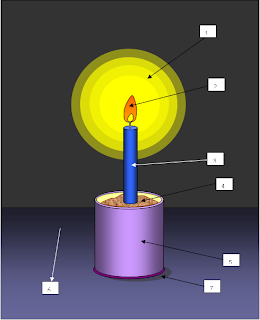
Effect No. | Tools | How to do it? |
1 | Shape Fill More Fill Colors | Fill object with Yellow colour Move Transparency slider to 40% on Standard tab |
2 | Shape Fill > Theme Colors Gradient > More Gradients > Colors > Shading Styles | Two Colors > Orange, Accent 6, Darker 25% & Yellow Horizontal > Choose Variant No. 1 (Top Left) > OK |
3 | Shape Fill Gradient > Colors > Shading Styles | Fill object with Blue colour Vertical > Choose Variant No. 4 (Bottom Right) > OK |
4 | Shape Fill > Texture | Sand |
5 | Shape Fill Gradient > Colors > Shading Styles | Two Colors > Purple & Purple, Accent 4, Lighter 60% Vertical > Choose Variant No. 4 (Bottom Right) > OK |
6 | Shape Fill Gradient > Colors > Shading Styles | Fill object with Aqua colour Horizontal > Choose Variant No. 2 (Top Right) > OK |
Oval > Shape Fill | Fill object with Black, Text 1, Lighter 35% |
Friday, January 9, 2015
HOW TO DRAW A GOLDEN CUBE USB SPEAKER IN MS WORD
MICROSOFT WORD DRAWING PROJECT No. 40
TITLE: HOW TO DRAW A GOLDEN CUBE USB SPEAKER IN MS WORD
TYPE: ILLUSTRATION / DIGITAL DRAWING
Hello, readers! I have taken quite a long break from blogging because I’d been busy working on the revised editions of my Visual Art Education workbook series for Secondary School used next year. Writing Visual Art books can be quite challenging because I not only have to create the text but also the graphics or artwork as well. I work on my art book projects using whatever free time I have after fulfilling my job and family commitments. Now that I have some time, I’ll pick up where I left off.
Here are two illustrations of the Golden Cube USB Speaker which I’d created in MS Word 2007 recently. The USB speaker device was created in MS Word using only the Freeform line tool. Various effects were added using Shape Fill, Shape Outline, and Shadow Effects which can be accessed by clicking the Format tab. It is best to draw it in MS Word version 2007 and above because the newer versions have many additional graphical effects that are not present in previous versions like MS Word 2003 or MS Word 2000. Anyway, for readers who don’t have MS Office 2007, they can also make use of the older versions to create the illustrations just that the illustrations would look rather flat. I’d illustrated how to draw the cube in the previous project, right? Just use some of the tips that I’d demonstrated in the previous posts to create these impressive looking illustrations.

The Golden Cube USB Speaker in translucent cover display case.
This illustration is visually balanced.

The USB device in the display case with the cover removed.
Visual balance is achieved in this illustration by placing the cover on the left and the USB plug on the right.
HOW TO DRAW A HALF EATEN ICE CREAM IN MS WORD
MICROSOFT WORD DRAWING PROJECT No. 8
TITLE : ICE CREAM COATED WITH CHOCOLATE AND NUTS
TITLE : ICE CREAM COATED WITH CHOCOLATE AND NUTS
TYPE : ILLUSTRATION

It looks like somebody had taken two bites out of the ice cream. Refer to Project No. 7 for steps to create this ice cream. Make use of the Curve line tool to create the area that has been eaten as well as the bits of nuts that coated the ice cream. Use the Edit Points tool to fine-tune the lines.
1/2

To create the bits of nuts, use the Curve line tool to create a few circular shapes and then use the Edit > Copy and Edit > Paste commands to multiply their number.
2/2
Subscribe to:
Posts (Atom)