Showing posts with label powerpoint. Show all posts
Showing posts with label powerpoint. Show all posts
Saturday, February 28, 2015
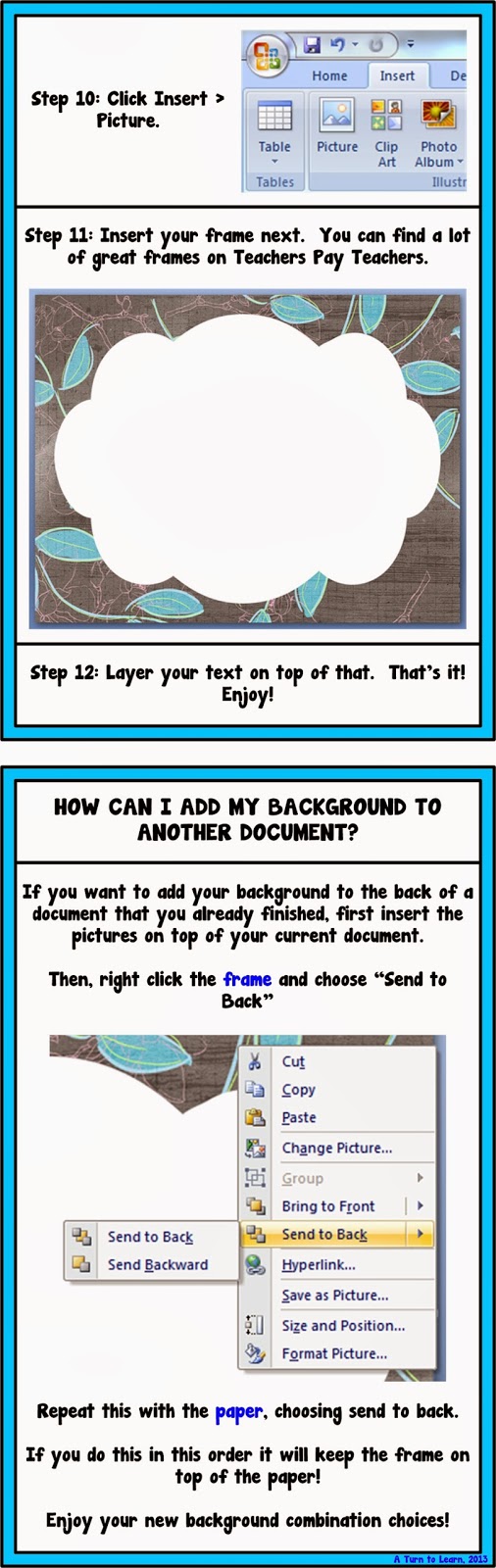
How to Layer Papers and Frames in PowerPoint
Honestly, this is something that some of us take for granted! If youre just starting out making your own items, this tutorial is sure to help make them a little cuter!


Heres the tutorial (with a little troubleshooting tip at the end!)



As for next week, Ill add another PowerPoint tutorial: how to make your PowerPoint load on another computer (same font, colors, etc.) This will be super helpful for the teachers who have to travel from class to class!
Heres the tutorial (with a little troubleshooting tip at the end!)
You can download this tutorial as a PDF by clicking this picture!
Note: This tutorial is hosted on Google Drive. To save it from there, just open the file and click File > Download to save onto your computer!
As for next week, Ill add another PowerPoint tutorial: how to make your PowerPoint load on another computer (same font, colors, etc.) This will be super helpful for the teachers who have to travel from class to class!


Sunday, February 1, 2015
Learn PowerPoint 2013 Free training videos from Microsoft
Every new software or software upgrade comes with new features and UI changes which you might find difficult to figure out easily. Microsofts PowerPoint 2013 set to release later this year would also require some learning effort to fully utilize the potential of new features and functionality.
Though basic things and features are still the same as they were in PowerPoint 2007 and 2010, yet PowerPoint 2013 has lot of new features, UI changes and close integration with web.
Following tutorials from Microsoft explain various features and functionality and unveil the potential of PowerPoint 2013.
1) Switch from 2003 to 2013
Microsoft has created these tutorials to help you easily switch to PowerPoint 2013. Tutorial in the form of a presentation can also be downloaded from Microsofts website.
Note: These videos were extracted from the training presentation available on MS website to share with blog readers.
Though basic things and features are still the same as they were in PowerPoint 2007 and 2010, yet PowerPoint 2013 has lot of new features, UI changes and close integration with web.
Following tutorials from Microsoft explain various features and functionality and unveil the potential of PowerPoint 2013.
1) Switch from 2003 to 2013
2) First look- Ribbon and commands
3) How things are organized- Menu, mini toolbar, Print preview
5) Save, publish and share
Microsoft has created these tutorials to help you easily switch to PowerPoint 2013. Tutorial in the form of a presentation can also be downloaded from Microsofts website.
Note: These videos were extracted from the training presentation available on MS website to share with blog readers.
Wednesday, January 28, 2015
PowerPoint templates and diagrams for just 3 99 authorSTREAM Templates Marketplace
The scattered PowerPoint templates industry is all set to touch new heights of business with authorSTREAM launching PowerPoint Templates Marketplace. Now you need not to browse through tens of different websites to get the right template for your next presentation. authorSTREAM is offering 20,000 plus PowerPoint templates and diagrams at a price of just $3.99 which is almost half the price of other popular templates websites.
 Since launch, authorSTREAM has been focusing only on PowerPoint users. While others like SlideShare, Scribd let you upload and share documents, excel files or videos, authorSTREAM allows only presentations. Be it conducting free webinars on presentation tips, authorSTREAM Desktop plugin, PowerPoint to video feature or PowerPoint templates marketplace, focus of all is on one thing i.e. help presentation creators create and share great presentations without any hassles.
This is a welcome move by authorSTREAM towards making authorSTREAM one stop shop for all the needs of presentation creators. Started with one template provider, authorSTREAM is soon going to get more providers on-board. Given the user base and traffic of authorSTREAM, it should be win-win situation for templates providers and buyers since sale is not all about price but about volumes and who knows in future you get a PowerPoint template for just $2.
This is a welcome move by authorSTREAM towards making authorSTREAM one stop shop for all the needs of presentation creators. Started with one template provider, authorSTREAM is soon going to get more providers on-board. Given the user base and traffic of authorSTREAM, it should be win-win situation for templates providers and buyers since sale is not all about price but about volumes and who knows in future you get a PowerPoint template for just $2.
Tuesday, January 27, 2015
Working with pictures in PowerPoint 2010
Microsoft PowerPoint 2010 has quite rich picture tools. If used effectively, its none less than a professional image editing software like Photo-shop. Apart from regular features of image editing like cropping, adjustment of brightness, picture effects, PowerPoint 2010 also offers some advance features like Artistic effects, Background removal and picture layouts.
Artistic effects

Glow Edges, Photocopy, and Paint Strokes. Select an image and click Artistic effects button on Pictures Tool menu. Just move the mouse over the effects and click when you find one fit for your presentation.
Background removal
PowerPoint 2010 also offers a cool new Background removal tool which makes image editing quite a fun. As per Microsoft "Unlike similar tools, the Office Background Removal tool doesn’t just select color ranges or trim to a border you draw. Read more>>
Picture layout
Love creating storyboards or comic series in a PowerPoint? If your answer
is yes then Picture Layout is
 the perfect tool for you.
There are different type of SmartArt graphics layout where you can tell your story with pictures. There are also other new SmartArt graphic layouts. Even better, if you have pictures on your slide you can quickly convert them to a SmartArt graphic, just like you can do with text.
Using this layout to create a SmartArt graphic is simple:
Insert the SmartArt graphic picture layout.
Add your photograph(s).
Write descriptive text.
Try out image editing capabilities of PowerPoint 2010 and you will find that you no more need to leave PowerPoint to get that perfect picture.
Sunday, January 25, 2015
Creating icons logo using PowerPoint 2007
Many a times, you may have felt helpless when it comes to get an appealing icon/logo for your website/blog/profile etc. Major concerns are: you dont know Adobe Photoshop, you cant afford buying Photoshop license or your budget dont allow you to hire a professional designer.
Well, in all such situations Microsoft PowerPoint can come to your rescue. You can create professional looking icon/logo using PowerPoint and Paint. Here is the video which demonstrates how you can create awesome icons using PowerPoint and Microsoft paint.
Icon thus created was used on http://www.youtube.com/user/yutubemedia
Friday, January 23, 2015
Make flowcharts in PowerPoint
With Powerpoint you can create effective presentation materials but most users are not familiar with the fundamentals of creating flowcharts. Flowcharts are good for showing step by step process using different kinds of labeled boxes and arrows.
Below are the steps on how to make a flowchart:
Step 1: Create a new slide where you want to make your chart (right click on the slides tab and then choose “New Slide” on the menu... read more here
[via http://www.online-tech-tips.com/ms-office-tips/how-to-make-flowcharts-in-powerpoint/]

Thursday, January 22, 2015
PowerPoint usage statistics and market share
 Image via Wikipedia
PowerPoint industry has flourished like anything in last few years. More and more people have started using PowerPoint presentations for business, education and marketing activities. The success of new product ideas and use cases like online PowerPoint sharing, converting PowerPoint presentations to videos, creating synchronized PowerPoint presentations validates the rapid growth of PowerPoint industry.
This growth is the reason that lot many people [Entrepreneurs, Product Managers, Analysts] look for stats related to usage of PowerPoint presentations and try to estimate the size of PowerPoint market. No doubt that such stats [even estimates] are of much importance to any business or product idea related to PowerPoint and PowerPoint users.
Here are few important estimated stats about PowerPoint that might help those looking for such stats. We would keep on updating these stats with links to resources from where they come from:
- How many PowerPoint users are there?: There are more than 500 million users of PowerPoint worldwide. [Source of information]
- How many presentations are created daily?: More than 30 million presentations are created everyday [Source of information]
- Use of PowerPoint in teaching: Over 6 Million Teachers around the world use PowerPoint for classroom lectures [Source of information]
- Use of PowerPoint in Business and Education: More than 120 million people are using PowerPoint to create business and educational presentations worldwide. [Source of information]
- Estimated sale of PowerPoint software $100m [Source of information]
- Average PowerPoint runs for 250 minutes start up to shutdown [Source of information]
- The average PowerPoint slide shows has 40 words [Source of information]
- Microsoft PowerPoint has estimated 95% share of presentation software market [Source of information]
Subscribe to:
Posts (Atom)